How to Unarchive a Channel in Slack
Need to bring an archived Slack channel back to life? This guide covers how to unarchive it, who has permission, and what to expect once it's restored.
June 4, 2026
Who can unarchive a Slack channel?
Unarchiving a channel requires admin or owner permissions. Regular members — even if they were originally in the channel — cannot unarchive it themselves.
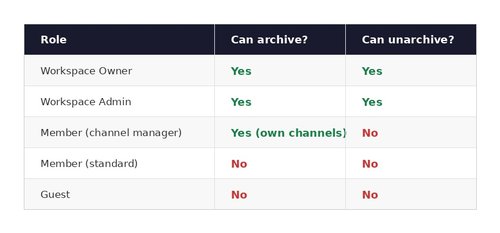
How to unarchive a channel: step-by-step
Unarchiving is done from the channel browser inside Slack. Here's exactly how to do it on desktop:
Step 1 — Open the channel browser Click the + icon next to "Channels" in the sidebar, or navigate to More → Channel browser from the top of the sidebar. You can also press Cmd+K (Mac) or Ctrl+K (Windows) to open the quick switcher.
Step 2 — Filter to show archived channels In the channel browser, look for the filter or dropdown that lets you view channel type. Select Archived channels to surface channels that are no longer active.
Step 3 — Find the channel you want to restore Use the search bar to find the specific archived channel by name. Archived channels are not shown in your main sidebar, so the channel browser is the only place to locate them.
Step 4 — Open the channel and unarchive it Click into the channel. You'll see a notice at the top indicating it's archived. Click Unarchive Channel. Alternatively, from the channel settings (gear icon), select Additional options → Unarchive this channel.
Step 5 — Confirm the action Slack will prompt you to confirm. Once confirmed, the channel is immediately restored to the active list and members can begin posting again.
What happens after you unarchive a channel?
When a channel is unarchived, a few things happen immediately:
- The channel reappears in the active channel list and sidebar.
- All previous messages, files, and pinned items are fully restored.
- Members who were in the channel before it was archived are not automatically re-added — you may need to re-invite people manually.
- Any external users who were removed at the time of archiving will also need to be re-invited.
- Integrations and apps connected to the channel will need to be re-enabled.
Archiving vs. deleting: what's the difference?
These two actions sound similar but have very different consequences:
- Archiving — Closes the channel, preserves all history, reversible at any time by an admin.
- Deleting — Permanently removes the channel and all messages, files, and history. Cannot be undone.
For the vast majority of situations, archiving is the right choice. Deletion is a permanent action and should be used only when you are certain the channel's history is no longer needed and you have complied with any applicable data retention policies.
Managing archived channels at scale
For larger Slack workspaces, keeping track of which channels should be archived — and which archived channels might need to be revived — quickly becomes a manual, time-consuming task. Admins can end up with hundreds of archived channels they've lost track of, or miss the moment when a channel goes stale and should be closed.
This is the problem Chronicle is built to solve. Chronicle automatically scans your Slack workspace for inactive channels, sends notifications to channel members so they can decide whether to keep or archive their own channels, and gives admins a single dashboard to see the full picture — active, semi-active, and archived — without digging through Slack's native settings.
Keep your Slack workspace clean with Chronicle
Chronicle helps Slack admins detect inactive channels, automate archiving workflows, and monitor workspace events — all from one dashboard. No new passwords, no onboarding required.
👉 Add Chronicle to Slack: https://www.chronicle-app.com/new-account